
Getting more customer reviews can feel like a bit of a puzzle sometimes, right? You know good reviews help your business look great online, but getting people to actually leave them can be tricky. That’s where a clever tool like the Canva QR code generator comes in. It’s a simple way to make it super easy for your happy customers to share their positive experiences. This guide will walk you through exactly how to use the Canva QR code generator to get more reviews and boost your business.
Think of a QR code generator as a digital magic wand. You give it a web address – like your Google review page, a special offer, or your website – and it spits out a scannable square pattern. This pattern, the QR code, is basically a shortcut. When someone points their phone camera at it, their phone instantly knows where to go online. Canva’s QR code generator is just one of many tools that can create these codes, letting you design them right within your Canva projects. It’s a handy way to link your physical designs, like flyers or posters, to your online presence.
In today’s fast-paced world, making things easy for customers is key. QR codes do just that. Imagine a customer has just had a fantastic meal at your restaurant. They want to leave a review, but fumbling around on their phone to find your Google page can be a hassle. A QR code on the bill or a small card on the table takes them straight there. This simple step can dramatically increase the number of reviews you receive.
Here’s how it helps:
Canva makes the whole process a bit more visually appealing. Instead of just a plain black and white square, you can integrate your QR code into a larger design. This means:
Using a tool like Canva means you’re not just creating a functional QR code; you’re creating a branded element that fits seamlessly into your overall marketing strategy. It’s about making that connection between your physical presence and your online world as smooth as possible for your customers. This ease of use is what turns a casual customer into a loyal advocate. For example, a boutique hotel in the Cotswolds might use a QR code on their check-in cards that links directly to their Google review page [db27]. This simple addition makes it effortless for guests to share their positive experiences, which in turn helps attract new visitors looking for a charming stay.
So, you’ve decided to jump on the QR code bandwagon, and that’s a smart move. But how do you actually get one of these handy little codes up and running? It’s not as complicated as it might sound. The first thing you’ll need is your unique review link. This is basically a direct web address that takes people straight to where they can leave you a review on platforms like Google, TripAdvisor, or Trustpilot.
Think about a local bakery in Brighton. They might have a fantastic reputation, but if customers can’t easily find where to leave a review, those glowing comments might never get written down. By having a simple QR code on their till receipts, customers who’ve just enjoyed a delicious pastry can scan it on their way out and leave a quick five-star rating. It’s that straightforward.
This is the bedrock of your QR code. You need to pinpoint the exact URL that leads directly to your review profile. For Google, this usually means finding your business listing and then locating the ‘Get more reviews’ option, which provides a shareable link. For other platforms, the process is similar – you’re looking for that direct pathway to your review section. It’s worth taking a moment to find the most direct link possible, as this makes the customer’s journey smoother.
Once you have your link, you’ll need a tool to turn it into a scannable QR code. Canva has its own built-in generator, which is super convenient if you’re already designing other things there. Alternatively, there are many dedicated online QR code generators available. Some offer basic, free options, while others provide more advanced features like dynamic QR codes (where you can change the destination link later without changing the QR code itself) or custom branding. For most small businesses, a straightforward generator will do the trick. You can easily create QR codes in Canva by searching for the QR code app within their platform.
Here’s a quick rundown of the process:
For example, a small independent bookshop in Edinburgh found that by simply adding a QR code to their loyalty cards, they saw a noticeable increase in Google reviews. Customers who were already happy enough to join the loyalty scheme were then prompted to share their positive experiences with just a quick scan.
Making it easy for happy customers to leave feedback is key. If the process is too fiddly, they’ll likely forget or give up. A well-placed QR code acts as a direct invitation to share their positive experience, turning a good feeling into a valuable online review.
So, you’ve got your link and you’re ready to make a QR code. Now for the fun part: making it look good! Canva makes it super simple to design a QR code that fits right in with your brand. It’s not just about functionality; a well-designed QR code can actually catch people’s eye.
When you first generate a QR code, it’s usually just a plain black and white square. While that works, it’s not exactly exciting. Canva lets you play around with the colours. You can change the background colour to match your website or logo. For best results, keep the QR code itself a dark colour, like black or a deep navy, against a lighter background. This contrast is key for making sure phones can actually read the code. Think about a local bakery in Brighton; they might use a warm cream background with a dark brown QR code to match their cosy, artisanal vibe. It’s a small touch, but it makes a difference.
Want to make your QR code even more recognisable? Uploading your business logo is a great idea. Most QR code generators, including Canva, have an option to place your logo right in the centre of the code. This turns a generic code into something uniquely yours. Imagine a small independent bookshop in Edinburgh; adding their distinctive logo to the QR code on their flyers makes it instantly identifiable and adds a professional polish. It’s a smart way to reinforce your brand every time someone scans it.
Consistency is important for any business. Your QR code shouldn’t look out of place. Use colours and fonts that are already part of your brand identity. If your business uses a specific shade of blue, try to incorporate that into the QR code’s design. A local cafe in Cornwall, known for its seaside blues and sandy beiges, could use these colours in their QR code design. This visual connection helps customers recognise your brand instantly, whether they see your QR code on a menu, a poster, or a receipt. It all adds up to a more cohesive and professional image.
Right then, you’ve designed your QR code in Canva, making it look sharp and on-brand. Now comes the exciting part: getting it ready to use in the real world. This is where your carefully crafted QR code transforms from a digital design into a tangible tool for gathering feedback.
Before you hit download, give your QR code one last look. Does it scan easily? Is the contrast good enough? Sometimes, adding too many design elements can make it tricky for phones to read. A simple black and white QR code is usually the most reliable, but if you’ve opted for colours, make sure there’s a clear difference between the dark and light parts. Think about where you’ll be using it – a busy cafe might need a bolder, clearer code than a quiet office.
Once you’re happy, it’s time to download. Canva makes this straightforward. You’ll usually have a few options for file types, and picking the right one is important depending on how you plan to use it.
For most print jobs, like business cards or table tents, a PNG file will work perfectly well. However, if you’re sending your design to a professional printer for something larger, like a shop sign or a large poster, an SVG file is often preferred. It ensures the QR code remains crisp and scannable no matter how big it gets. A Bristol hairdresser, for example, found that switching from asking customers in person to using QR codes on their appointment cards led to three times more Google reviews in just one month. They downloaded their QR code as a high-resolution PNG, perfect for printing on their cards.
Getting more reviews shouldn’t be a chore. With a QR code, customers can leave feedback in seconds. UK businesses are using these codes on everything from receipts to takeaway cups, making it super easy for happy customers to share their positive experiences. This direct link cuts out the searching and clicking, turning a good experience into a valuable online review.
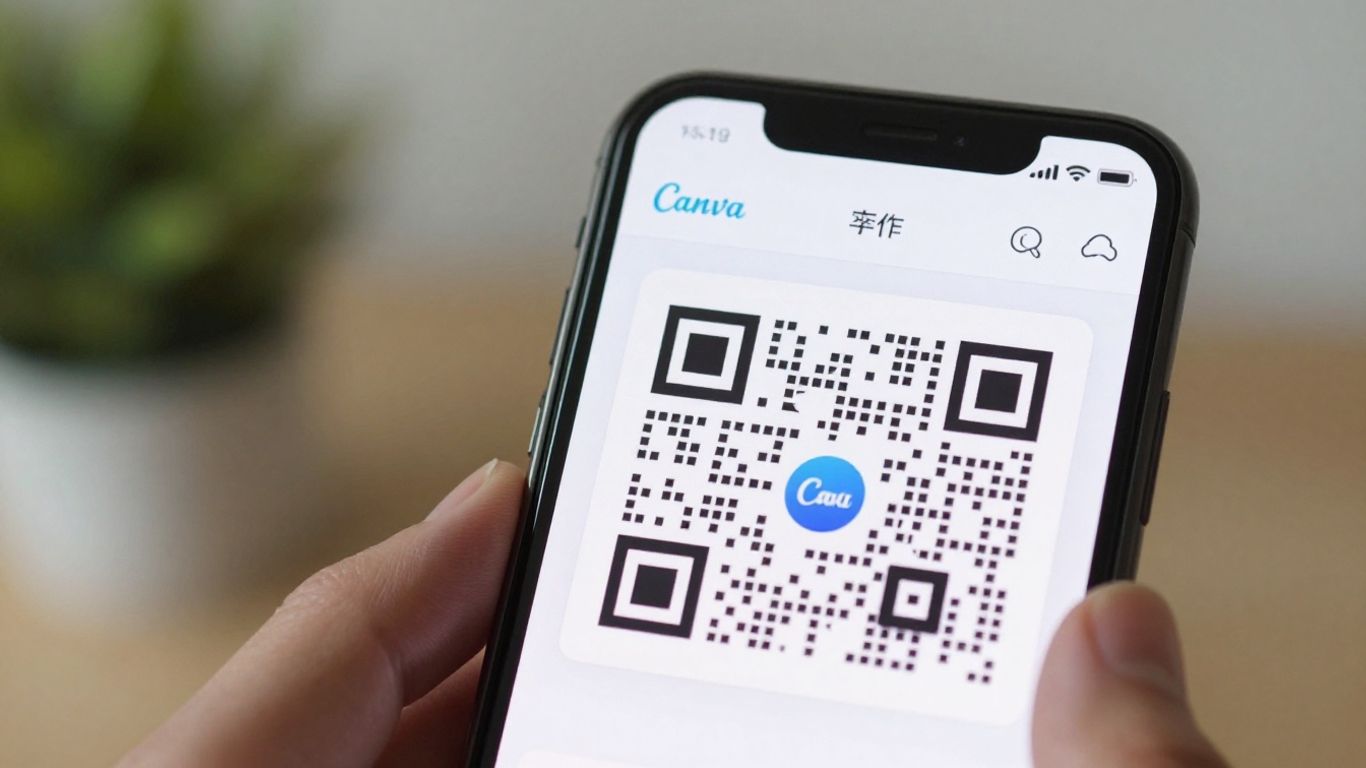
So, you’ve designed a snazzy QR code. Now, where does it actually go? The trick is to put it where your customers are most likely to see it and have a moment to scan it. Think about places that are part of their experience with your business.
Consider these common spots where UK businesses have seen success:
Just putting a QR code out there isn’t always enough. You need to give people a reason to scan it. Make it clear what they’ll get by scanning.
Here are a few ideas:
It’s not just about putting the code out there; it’s about seeing if it’s working. While Canva’s generator is great for design, you’ll want to track how many people are actually scanning your code and, more importantly, leaving reviews.
The goal is to make the process of leaving a review so simple that a happy customer will do it without a second thought. When it’s easy, more people will take that extra step, which directly impacts your online visibility and reputation.
Online reviews are basically the new word-of-mouth, aren’t they? When people are looking for a local service, like a plumber in Bristol or a cafe in Edinburgh, they’re checking what others have said. Google uses these reviews to figure out who’s trustworthy and who’s actually good at what they do. Having a solid collection of positive reviews means your business is more likely to show up higher in those local search results. It’s like having a prime spot on the high street, but online. A simple QR code on a review card, or even a sticker on your counter, makes it incredibly easy for a happy customer to leave that review right then and there. They just scan, tap, and they’re on your Google review page. This direct link is a game-changer for collecting feedback and boosting your visibility.
So, how do you actually get those glowing reviews? It’s all about making it super simple for your customers. When someone has a great experience, they often want to share it. But sometimes, finding where to leave a review can be a bit of a hassle. That’s where a QR code comes in. Think of it as a direct express lane to your Google Business Profile. Instead of them having to search for you, they just scan the code, and boom – they’re right there, ready to share their thoughts. This makes it so much easier for happy customers to leave you those all-important five-star ratings. For example, a small independent shop in Cornwall, ‘Seaside Crafts’, found that adding a QR code to their thank-you notes after online orders led to a surge in Google reviews, boosting their visibility to holidaymakers searching locally. It’s about making it effortless for people to become your online cheerleaders.
Getting more reviews isn’t just about looking good; it directly impacts how easily people can find you. When potential customers search for services in their local area, businesses with more positive Google reviews tend to rank higher. Imagine two similar local businesses; one with 10 reviews and a 4.2-star rating, and another with 100 reviews and a 4.7-star rating. Which one do you think is more likely to get the click? It’s the one that looks more trusted and popular, and that’s often down to the sheer volume and quality of its reviews. This is why making it easy to collect them is so important for local visibility and building trust. A popular pub in Manchester, ‘The Old Oak’, started putting QR codes on their table talkers, and they found customers were scanning them while waiting for their food. It’s about meeting your customers where they are. This simple step makes a real difference to their online presence and, ultimately, their customer base.
Here’s a quick look at how it works:
The key is to make the entire process as frictionless as possible. If it takes more than a few seconds, you risk losing the customer’s willingness to engage. A QR code on a card or a counter stand is the most direct route.
Want to make your online image shine? QR codes are a super simple way to help people find you online. They’re like a quick shortcut to your website, making it easy for customers to connect with you. Ready to boost your online presence? Visit our website today to learn more!
So there you have it. Creating a QR code with Canva is pretty straightforward, really. It’s a simple tool that can make a big difference for your business. Making it easy for happy customers to share their good experiences means more people will see your great work. Give it a go, and see how it helps you connect with more customers.
A QR code generator is like a special tool that turns a web link into a scannable square pattern, similar to a barcode. For your business, it means you can create a quick link straight to your review page on sites like Google or TripAdvisor. When customers scan it with their phone, they’re taken right there to leave a review, making it super easy for them and helping you get more feedback.
Think of online reviews as your business’s report card. When people search for businesses like yours, they often check reviews first. Lots of good reviews make your business look trustworthy and popular. This can really help you stand out from competitors and encourage more people to choose you.
Many QR code tools, including Canva, let you get creative! You can often change the colours of the QR code to match your business’s colours. Some even let you add your company logo right in the middle of the code. This makes it look more unique and helps customers recognise your brand instantly.
You can put your QR codes almost anywhere! Great spots include on your receipts, flyers, menus, business cards, or even as a sticker on your shop window or counter. The idea is to make it super convenient for happy customers to scan it when they’ve had a good experience.
That’s a good question! Many services that create QR codes also give you a simple, short web link. You can print this link next to the QR code. So, if someone can’t scan it, they can just type the short link into their phone’s browser to leave a review instead. It’s a handy backup!
Yes, you can! Some QR code services offer ‘dynamic’ codes. This means you can change the web address the QR code links to later on, without having to create a whole new QR code. This is useful if your review page link ever changes or if you want to direct people to a different promotion.